
Oracle Database Users: Create & Unlock

Introduction

In the world of database management, Oracle stands as one of the most robust and widely-used relational database systems. Managing user accounts efficiently is crucial for maintaining data security and integrity. In this blog post, we'll walk you through the process of creating new users and unlocking existing ones in Oracle, complete with the necessary SQL syntax.

Creating a New User in Oracle

Creating a new user involves defining their username, password, and privileges.

Follow these steps to create a new user in Oracle:

Connect to Oracle:
Before you can create a new user, you need to connect to the Oracle database using a tool like SQL*Plus or SQL Developer.

Login: sqlplus / as sysdba
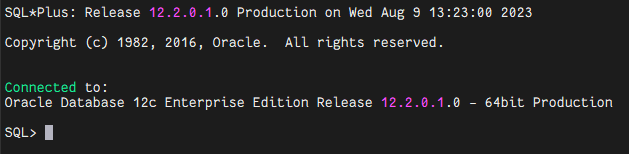
Execute the CREATE USER Command:
Use the following SQL command to create a new user:

CREATE USER new_username IDENTIFIED BY password;

Assign Privileges:
You can grant specific privileges to the new user. For example, granting them the ability to connect and create tables:

GRANT CONNECT, CREATE TABLE TO new_username;

Control Resources:
Optionally, you can control resources the user can consume, such as limiting their sessions or CPU usage:

ALTER USER new_username LIMIT SESSIONS 5 CPU_PER_SESSION 100K;

Unlocking a User in Oracle

If a user's account becomes locked due to too many failed login attempts or administrative actions.

You can unlock it using the following steps:

Connect to Oracle:
Similar to user creation, establish a connection to your Oracle database.

Execute ALTER USER Command:
To unlock the user, use the ALTER USER statement:

ALTER USER username ACCOUNT UNLOCK;

Reset Password (if needed):
If the user's account was locked due to a forgotten password, you might need to reset it:

ALTER USER username IDENTIFIED BY new_password;


#Or Directly Unlock account with new password#

ALTER USER username IDENTIFIED BY new_password ACCOUNT unlock;

Remember, you need appropriate administrative privileges to create users and unlock accounts. Always ensure that you follow your organization's security policies and best practices when managing users in Oracle.

Conclusion:
Managing user accounts effectively is a cornerstone of maintaining a secure and well-organized Oracle database. Creating new users and unlocking existing ones can be achieved with a few straightforward SQL commands, as outlined in this guide. By following these steps and adhering to security best practices, you'll be able to maintain the integrity and security of your Oracle database while efficiently managing user access. www.infoinflux.com

Comments

Popular posts from this blog

Upgrade Oracle Database 12c to 19c by DBUA Method

  Introduction Upgrade Oracle Database is a crucial step to ensure you're benefiting from the latest features, performance enhancements, and security updates. In this guide, we'll walk you through the process of upgrading your Oracle Database 12c to the latest version, 19c . Follow these steps to ensure a smooth and successful upgrade Environment Hostname : prod.infoinflux.com Database Name : PROD DB VERSION : 12.2.0.1.0 ORACLE_BASE : /u01/app/oracle DB Home Path : /u01/app/oracle/product/12.2.0.1/db_1 Datafile Location : /u01/app/oracle/oradata/PROD Target DB VERSION : 19.0.0.0 Target DB Path : /u01/app/oracle/product/19c/db_1 Upgrade Method : Database Upgrade Assistant Steps For upgrade using Database Upgrade Assistant (DBUA): Take Latest Database backup Make Directory for 19c Home Download and Unzip Software to 19c Home Directory Install 19c Binary or Software Create Pre and Post Upgrade Scripts Run Pre-Upgrade Script Pre-Upgra...

ORA-12012: error on auto execute of job SYS.ORA$AT_OS_OPT_SY_**

  Introduction ORA-12012 error is related to Oracle Database and is part of the Oracle Job Scheduler (DBMS_SCHEDULER) . It usually occurs when an automatic task or job execution encounters an issue. The error message you're seeing, " ORA$AT_OS_OPT_SY_<number> ," is specific to the job causing the problem. During the 12c database creation process, you can see ORA-12012 error in the alert log file when the “ SYS.ORA$AT_OS_OPT_SY_ ” auto job runs. To fix the error, it is necessary to drop the job and recreate it. Errors will be as follows. Errors in file /u01/app/oracle/diag/rdbms/prod/PROD/trace/PROD_j000_14524.trc: ORA-12012: error on auto execute of job "SYS"."ORA$AT_OS_OPT_SY_767" ORA-20001: Statistics Advisor: Invalid task name for the current user ORA-06512: at "SYS.DBMS_STATS", line 47207 ORA-06512: at "SYS.DBMS_STATS_ADVISOR", line 882 ORA-06512: at "SYS.DBMS_STATS_INTERNAL", line 20059 ORA-065...

Install Oracle Database 12.2(12c) on Linux

  Introduction Installing Oracle Database 12.2 on Linux system might seem daunting at first, but with the right guidance, it can be a smooth process. In this guide, we'll take you through the step-by-step procedure to install Oracle Database on a Linux environment. By the end of this tutorial, you'll have a functional Oracle Database instance up and running. Steps for Installation: 1. Prerequisites Automatic Setup 2. Prerequisites Manual Setup 3. Install Oracle Database Binary (Software only) 4. Create Database by DBCA 1. Prerequisites Automatic Setup To perform all your prerequisite setup automatically, issue the following command or you can proceed with manual setup explained in 2nd point. [ root @ prod ] # yum install oracle - database - server - 12cR2 - preinstall - y 2. Prerequisites Manual Setup a) Download and Unzip the oracle 12.2 Setup Download or copy the oracle setup file to any location as per your requirement. In...