
Install Oracle Database 12.2(12c) on Linux


Introduction

Installing Oracle Database 12.2 on Linux system might seem daunting at first, but with the right guidance, it can be a smooth process. In this guide, we'll take you through the step-by-step procedure to install Oracle Database on a Linux environment. By the end of this tutorial, you'll have a functional Oracle Database instance up and running.

Steps for Installation:

  • 1. Prerequisites Automatic Setup
  • 2. Prerequisites Manual Setup
  • 3. Install Oracle Database Binary (Software only)
  • 4. Create Database by DBCA

1. Prerequisites Automatic Setup

To perform all your prerequisite setup automatically, issue the following command or you can proceed with manual setup explained in 2nd point.

[root@prod]# yum install oracle-database-server-12cR2-preinstall -y

2. Prerequisites Manual Setup

a) Download and Unzip the oracle 12.2 Setup

Download or copy the oracle setup file to any location as per your requirement. In this case it is /u01.

Give chmod 775 permission to the setup file:
# chmod 775 <filename.zip>

Unzip Oracle_DB_12.2.zip:
Once unzipped it will show a folder named database at the unzipped location.

Give chmod 775 permission to database folder:
# chmod -R 775 database

b) Put a full hostname for the server in /etc/hosts file.

<IP-address> <full-host-name> <machine-name>

c) Add the following lines to the /etc/sysctl.conf file

fs.file-max = 6815744
kernel.sem = 250 32000 100 128
kernel.shmmni = 4096
kernel.shmall = 1073741824
kernel.shmmax = 4398046511104
kernel.panic_on_oops = 1
net.core.rmem_default = 262144
net.core.rmem_max = 4194304
net.core.wmem_default = 262144
net.core.wmem_max = 1048576
net.ipv4.conf.all.rp_filter = 2
net.ipv4.conf.default.rp_filter = 2
fs.aio-max-nr = 1048576
net.ipv4.ip_local_port_range = 9000 65500

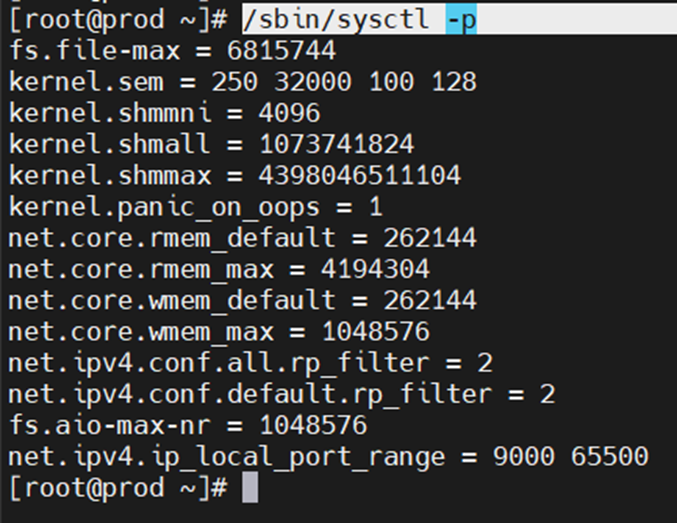
Run the following commands to change the current kernel parameters.
/sbin/sysctl -p
d) Add the following lines to a file called /etc/security/limits.conf

oracle   soft   nofile    1024
oracle   hard   nofile    65536
oracle   soft   nproc    16384
oracle   hard   nproc    16384
oracle   soft   stack    10240
oracle   hard   stack    32768
oracle   hard   memlock    134217728
oracle   soft   memlock    134217728

e) Install Required Packages

The following packages are listed as required, including the 32-bit version of some of the packages. Many of the packages should be installed already. If you don't have internet in the machine in that case you can create local yum repository in linux to install these packages.

yum install binutils -y
yum install compat-libstdc++-33 -y
yum install compat-libstdc++-33.i686 -y
yum install gcc -y
yum install gcc-c++ -y
yum install glibc -y
yum install glibc.i686 -y
yum install glibc-devel -y
yum install glibc-devel.i686 -y
yum install ksh -y
yum install libgcc -y
yum install libgcc.i686 -y
yum install libstdc++ -y
yum install libstdc++.i686 -y
yum install libstdc++-devel -y
yum install libstdc++-devel.i686 -y
yum install libaio -y
yum install libaio.i686 -y
yum install libaio-devel -y
yum install libaio-devel.i686 -y
yum install libXext -y
yum install libXext.i686 -y
yum install libXtst -y
yum install libXtst.i686 -y
yum install libX11 -y
yum install libX11.i686 -y
yum install libXau -y
yum install libXau.i686 -y
yum install libxcb -y
yum install libxcb.i686 -y
yum install libXi -y
yum install libXi.i686 -y
yum install make -y
yum install sysstat -y
yum install unixODBC -y
yum install unixODBC-devel -y
yum install zlib-devel -y
yum install zlib-devel.i686 -y

f) Create new groups, users & directories

groupadd -g 5001 oinstall
groupadd -g 5002 dba
groupadd -g 5003 oper


useradd -u 5007 -g oinstall -G dba,oper oracle
usermod -g oinstall -G dba,oper oracle


##set password of oracle by##

passwd oracle


##Create Directories and Give Permissions##

mkdir -p /u01/app/oracle/product/12.2.0.1/db_1
chown -R oracle:oinstall /u01
chmod -R 775 /u01

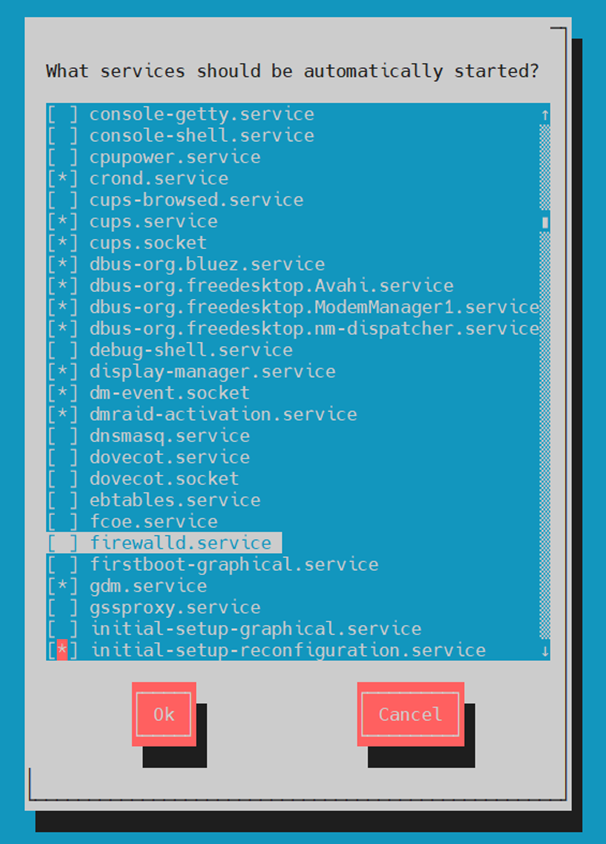
g) Stop and Disable Firewall

You will need to stop and disable the firewall or configure it. To disable it, do the following.

systemctl stop firewalld

systemctl disable firewalld

systemctl status firewalld

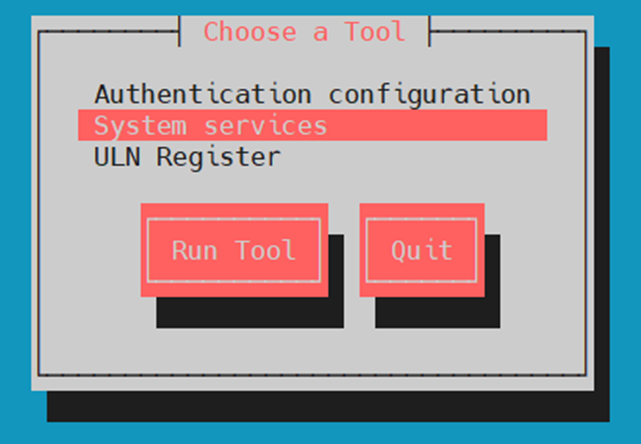
Or just type setup in terminal it will open Setup utility & navigate through System services to disable firewall
Install Oracle Database 12.2 on Linux

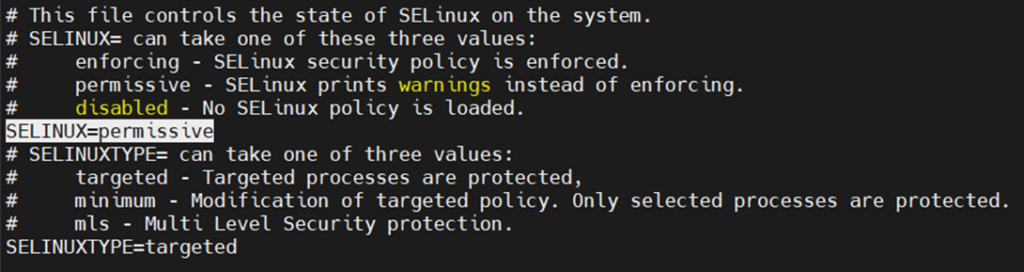
h) Set secure Linux to permissive by editing the /etc/selinux/config file

SELINUX=Permissive
Install Oracle Database 12.2 on Linux

Once the change is complete, restart the server or run the following command.
# setenforce Permissive

i) Login with Oracle user and add below entries .bash_profile

#Oracle environment settings

export TMP=/tmp
export TMPDIR=$TMP
export HOSTNAME=prod.infoinflux.com
export ORACLE_HOME=/u01/app/oracle/product/12.2.0.1/db_1
export ORACLE_SID=PROD
export PATH=$ORACLE_HOME/bin:$PATH
export ORACLE_BASE=/u01/app/oracle
export LD_LIBRARY_PATH=$ORACLE_HOME/lib:/lib:/usr/lib
export CLASSPATH=$ORACLE_HOME/JRE:$ORACLE_HOME/jlib:$ORACLE_HOME/rdbms/jlib

Now prerequisites are completed

3. Install Oracle Database Binary (Software only)

Go to software extracted location and run the run installer

Before you run runInstaller give chown permission to database folder from root user:
#chown -R oracle:oinstall database

Run from Oracle User:

[oracle@prod database]$ ./runInstaller
Starting Oracle Universal Installer…

Checking Temp space: must be greater than 500 MB. Actual 89608 MB Passed
Checking swap space: must be greater than 150 MB. Actual 16383 MB Passed
Checking monitor: must be configured to display at least 256 colors. Actual 16777216 Passed
Preparing to launch Oracle Universal Installer from /tmp/OraInstall2023-08-21_06-08-03AM. Please wait …

Follow the Screens below in Slides:

[metaslider id="1486"]

At the end of software installation it will ask to run the mentioned script from root user

/u01/app/oraInventory/orainstRoot.sh

/u01/app/oracle/product/12.2.0.1/db_1/root.sh
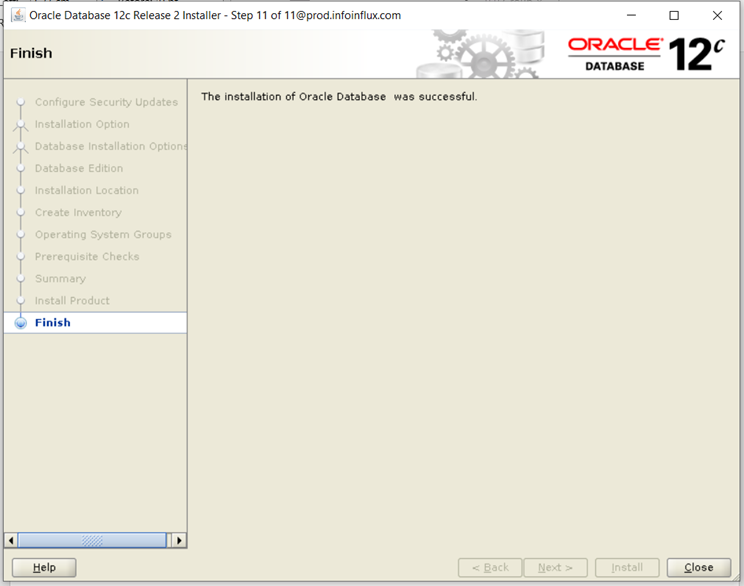
Install Oracle Database 12.2 on Linux

Oracle Software or Binary Installation is completed successfully.

4. Create Database by DBCA

Now We will create a database with DBCA. Type dbca from oracle user or type $ORACLE_HOME/bin/dbca
[oracle@prod ~]$ $ORACLE_HOME/bin/dbca

Follow the Screens below in Slides:

[metaslider id="1538"]

Conclusion

Congratulations! You've successfully installed Oracle Database 12.2 on Linux system. Remember, this guide provides a basic overview of the installation process. Depending on your specific setup and requirements, there might be additional steps or considerations. Always refer to Oracle's official documentation for the most accurate and up-to-date instructions.

Comments

Popular posts from this blog

Upgrade Oracle Database 12c to 19c by DBUA Method

  Introduction Upgrade Oracle Database is a crucial step to ensure you're benefiting from the latest features, performance enhancements, and security updates. In this guide, we'll walk you through the process of upgrading your Oracle Database 12c to the latest version, 19c . Follow these steps to ensure a smooth and successful upgrade Environment Hostname : prod.infoinflux.com Database Name : PROD DB VERSION : 12.2.0.1.0 ORACLE_BASE : /u01/app/oracle DB Home Path : /u01/app/oracle/product/12.2.0.1/db_1 Datafile Location : /u01/app/oracle/oradata/PROD Target DB VERSION : 19.0.0.0 Target DB Path : /u01/app/oracle/product/19c/db_1 Upgrade Method : Database Upgrade Assistant Steps For upgrade using Database Upgrade Assistant (DBUA): Take Latest Database backup Make Directory for 19c Home Download and Unzip Software to 19c Home Directory Install 19c Binary or Software Create Pre and Post Upgrade Scripts Run Pre-Upgrade Script Pre-Upgra...

Install Oracle Linux 6 or any version in VM Virtual Box

 1. Download & Install Oracle Linux from the Link: https://www.oracle.com/in/virtualization/technologies/vm/downloads/virtualbox-downloads.html 2. Download any ISO file from the link: https://yum.oracle.com/oracle-linux-isos.html I have downloaded 6.8 version iso 3. Let’s create the Linux machine using the same ISO. Click on New for creating new virtual machine. 4. Now Put Name and create a folder naming PROD or any other name as per your requirement. In my case my system D drive has enough of space, so I created a folder naming PROD and download the ISO image in same drive. I have Selected ISO image which I downloaded. Note: Make sure you select Skip Unattended Installation. Click Next. 5. I have 16 GB ram in my system so I am giving 4 GB(4096 MB), you can gives as per your system resources. Click Next 6. Now give Hard disk size you want to assign to your machine. Select pre-allocate Full Size. Click Next. 7. It wi...

Create Local Yum Repository In Linux From ISO Image

 A local YUM repository in Linux is a collection of RPM (Red Hat Package Manager) packages stored on a local server or file system. YUM (Yellowdog Updater, Modified) is a package management tool commonly used in Red Hat-based Linux distributions like CentOS, Fedora, and Red Hat Enterprise Linux. It simplifies the process of installing, updating, and managing software packages on a Linux system. In this we'll try to create one. Steps to follow: Mount the iso image in virtual machine. Install vsftpd rpm from the iso Packages. Copy the packages from iso to /var/ftp/pub/Packages/ Install createrepo .rpm  from packages and Create repo in location /var/ftp/pub/ Create new repo file in location /etc/yum.repos.d/{any_name.repo} and add entry Check and start the vsftpd and Clean & update the yum. 1. Mount the iso image in virtual machine. In the virtual machine select iso image file option in devices. It will be mounted and you can see the ico...

Primary & Standby Database SYNC Check in Oracle Database

 In Oracle Data Guard , you can check whether the standby database is in sync with the primary database by monitoring the apply lag. The apply lag represents the time delay between when a redo log is generated on the primary database and when it is applied on the standby database. A zero or low apply lag indicates that the standby is relatively up-to-date with the primary, while a high apply lag suggests a potential synchronization delay. Here are some methods to check whether the standby database is in sync with the primary: 1. Data Guard Broker If you are using the Data Guard Broker, you can use the DGMGRL command-line interface or Enterprise Manager (Grid Control) to check the status of the Data Guard configuration and monitor the apply lag. For example, using DGMGRL: DGMGRL> SHOW DATABASE 'standby_database_name' APPLY_LAG; DGMGRL > SHOW DATABASE 'standby_database_name' APPLY_LAG ; 2. V$DATAGUARD_STATS View On the primary datab...

ORA-12012: error on auto execute of job SYS.ORA$AT_OS_OPT_SY_**

  Introduction ORA-12012 error is related to Oracle Database and is part of the Oracle Job Scheduler (DBMS_SCHEDULER) . It usually occurs when an automatic task or job execution encounters an issue. The error message you're seeing, " ORA$AT_OS_OPT_SY_<number> ," is specific to the job causing the problem. During the 12c database creation process, you can see ORA-12012 error in the alert log file when the “ SYS.ORA$AT_OS_OPT_SY_ ” auto job runs. To fix the error, it is necessary to drop the job and recreate it. Errors will be as follows. Errors in file /u01/app/oracle/diag/rdbms/prod/PROD/trace/PROD_j000_14524.trc: ORA-12012: error on auto execute of job "SYS"."ORA$AT_OS_OPT_SY_767" ORA-20001: Statistics Advisor: Invalid task name for the current user ORA-06512: at "SYS.DBMS_STATS", line 47207 ORA-06512: at "SYS.DBMS_STATS_ADVISOR", line 882 ORA-06512: at "SYS.DBMS_STATS_INTERNAL", line 20059 ORA-065...

Install Oracle 19c Database on Linux

  Introduction Installing Oracle Database 19c on a Linux system might sound complex, but with a well-structured approach, it can be a smooth process. In this guide, we'll break down the installation steps into simple and easy-to-follow instructions, ensuring you set up or install Oracle 19c successfully on your Linux machine. Steps for Installation: 1. Download 19c Software & Copy it to Location 2. Prerequisites Automatic Setup 3. Prerequisites Manual Setup 4. Install 19c Oracle Database Binary (Software only) 5. Create Database by DBCA 1. Download 19c Software & Copy it to Location a) Download 19c Software on local system: Click here b) Transfer or copy Setup file using WinSCP or Mobaxterm on Linux Machine at any location as preferred. In my case I have copied to /u01 mount. c) Give chmod 775 permission to the setup file. [root@prod u01]# ls 19C_DB.zip [root@prod u01]# chmod 775 19C_DB.zip [ root @ prod u01 ]# ls 19 C_D...

RAC Database Shutdown Procedure

  Introduction When it comes to managing an Oracle Real Application Clusters (RAC) database, proper shutdown procedures are crucial to maintain data integrity and prevent potential issues. In this short blog post, we'll guide you through the step-by-step process of shutting down an Oracle RAC DB in sequence using commands, ensuring a smooth and safe shutdown. How to Shutdown Oracle Real Application Clusters Database ? Shutdown Oracle Listener. Shutdown RAC Database Instances on all nodes. Shutdown ASM instances from all nodes. Shutdown Node applications on all nodes. Shut down Oracle Clusterware / CRS. 1. Shutdown Oracle Listener ## To stop listener from all nodes ## [ grid @ node1 ~ ] $ srvctl stop listener ## To Check Status of listener ## [ grid @ node1 ~ ] $ srvctl status listener Listener LISTENER is enabled Listener LISTENER is not running on node ( s ): node1 , node2 ## OTHER COMMANDS ## ## To...

RMAN Backup using ShellScript

 In a real time, we will not take Oracle database backup manually everyday. Some of the tasks can be automated like RMAN backups. In this post, we will see how to automate RMAN backup using shellscript and I personally use shellscript for import/export, rman backup and for monitoring alerts. • Create Backup directory • Create RMAN backup script file .sh • Schedule Backup Under Crontab # Example of job definition: # .---------------- minute (0 - 59) # | .------------- hour (0 - 23) # | | .---------- day of month (1 - 31) # | | | .------- month (1 - 12) OR jan,feb,mar,apr ... # | | | | .---- day of week (0 - 6) (Sunday=0 or 7) OR sun,mon,tue,wed,thu,fri,sat # | | | | | # * * * * * user-name command to be executed # Example of job definition: # . ---------------- minute ( 0 - 59 ) # | . ------------- hour ( 0 - 23 ) # | | . ---------- day of month ( 1 - 31 ) # | | | . ------- month ( 1 - 12 ) OR jan , feb , mar , apr .....

ASM Disks Migration from Old storage to New storage on RAC

 Check Number of Disk Groups SQL> select name,path, total_mb, state, mount_status, header_status from v$asm_disk; NAME                      PATH                            TOTAL_MB   STATE   MOUNT_STATUS HEADER_STATUS --------------   ------------------------------      ----------     --------      --------------         ------------ DATA_0000      /dev/oracleasm/disks/DATA      225264    NORMAL      CACHED                MEMBER FRA_0000        /dev/oracleasm/disks/FRA          92160    NORMAL      CACHED                MEMBER CRS_0000      ...